The evolution of remote work, virtual education, and digital communication has elevated the importance of video conferencing hardware. While built-in cameras on modern MacBooks have improved significantly—often featuring 1080p FaceTime HD lenses or advanced image signal processors paired with Apple Silicon—they still rely on compact sensors constrained by the thin physical profile of a laptop lid. For professionals, content creators, and everyday users seeking DSLR-quality video calls without investing in dedicated external mirrorless cameras, Apple offers a native, high-performance solution already sitting in millions of pockets: the iPhone.
Through a proprietary ecosystem capability known as Continuity Camera, Apple allows users to harness the sophisticated multi-lens arrays, larger sensors, and advanced computational photography engines of their iPhones to act as a wireless or wired webcam and microphone for their Mac. This integration bridges the hardware gap between mobile photography and desktop computing, utilizing ecosystem synergy to deliver studio-grade visual fidelity during virtual meetings, webinars, and online lectures without requiring third-party software, complex drivers, or cumbersome hardware setups.
The technological architecture behind this feature reflects a broader industry shift toward device interoperability and hardware recycling. Instead of purchasing an independent peripheral, consumers can leverage the powerful camera hardware they already own. This comprehensive guide explores the systemic prerequisites, step-by-step configuration protocols, advanced creative features, troubleshooting methodologies, and the broader technological implications of Apple’s Continuity Camera feature in modern remote workflows.
Technological Background and Evolution of Continuity Camera
Apple first introduced the concept of Continuity alongside iOS 8 and OS X Yosemite in 2014, establishing a seamless bridge between mobile devices and personal computers. Features like Handoff, Universal Clipboard, and iPhone Cellular Calls transformed isolated operating systems into a unified user experience. However, utilizing high-end mobile optics as a primary computer input device remained a challenge due to bandwidth limitations, latency issues, and the sheer processing overhead of high-resolution video streaming.
As Apple transitioned its Mac lineup from Intel processors to proprietary Apple Silicon (M1, M2, M3, and M4 series) and enhanced the Neural Engine capabilities across its mobile and desktop chips, the technical barriers to real-time high-bandwidth video routing evaporated. Released natively with iOS 16 and macOS Ventura, Continuity Camera represented a major leap forward. It capitalized on the ultra-wide rear camera sensors of iPhones, utilizing software-based ultra-wide framing to create dynamic tracking capabilities that traditionally required motorized robotic webcams.
Industry analysts note that this capability addresses a long-standing pain point in remote corporate environments. While external webcams from manufacturers like Logitech, Elgato, and Razer occupy a multi-million-dollar hardware market, the integration of iPhone optics offers an immediate, zero-cost upgrade for Apple ecosystem loyalists. By routing video feeds through secure, encrypted device-to-device protocols, Apple ensures that high-definition data streams remain private and low-latency, whether connected via high-speed Wi-Fi networks or physical USB-C cables.
System Requirements and Ecosystem Prerequisites
Before initializing the Continuity Camera feature, users must verify that their hardware and software configurations meet the stringent compatibility baselines established by Apple. Because the feature relies heavily on shared cryptographic security keys, peer-to-peer Wi-Fi protocols, and advanced machine learning algorithms processed on the device’s neural architecture, specific hardware iterations are mandatory.
First, the primary imaging device—the iPhone—must be running iOS 16 or any subsequent software iteration. Hardware compatibility is restricted to iPhone XR or newer models, ensuring that the device possesses a sufficiently powerful neural engine and image signal processor to handle real-time computational adjustments. On the computing side, the host Mac (whether a MacBook Air, MacBook Pro, iMac, Mac mini, or Mac Studio) must operate on macOS Ventura 13 or later.
Crucially, both devices must be logged into the exact same Apple Account (formerly Apple ID) and protected by two-factor authentication. This security handshake ensures that unauthorized devices within a shared local network cannot hijack or intercept the high-definition video feed. For wireless operation, both the iPhone and the Mac must have Wi-Fi and Bluetooth toggled on, and the devices must remain within standard proximity parameters of one another. If these conditions are not systematically met, the system will fail to recognize the iPhone as a viable audio-video input source.
Step-by-Step Configuration and Deployment Protocol
Setting up Continuity Camera requires no third-party utility downloads, driver installations, or complicated network configurations. The entire pipeline is managed natively by the macOS and iOS operating systems. Users can execute the setup through a structured, multi-phase operational sequence.
1. Verifying System Settings and Account Synchronization
The foundational step requires checking software versions and account parameters. Users should navigate to the Settings application on their iPhone, verify their Apple Account credentials, and confirm that two-factor authentication is active. Next, navigate to General, followed by AirPlay & Continuity (or AirPlay & Handoff, depending on the specific iOS iteration). Within this menu, locate the toggle for Continuity Camera and ensure it is switched to the active position. By default, this feature is enabled out of the box on supported devices, but manual verification prevents connection bottlenecks.
2. Hardware Positioning and Physical Stability
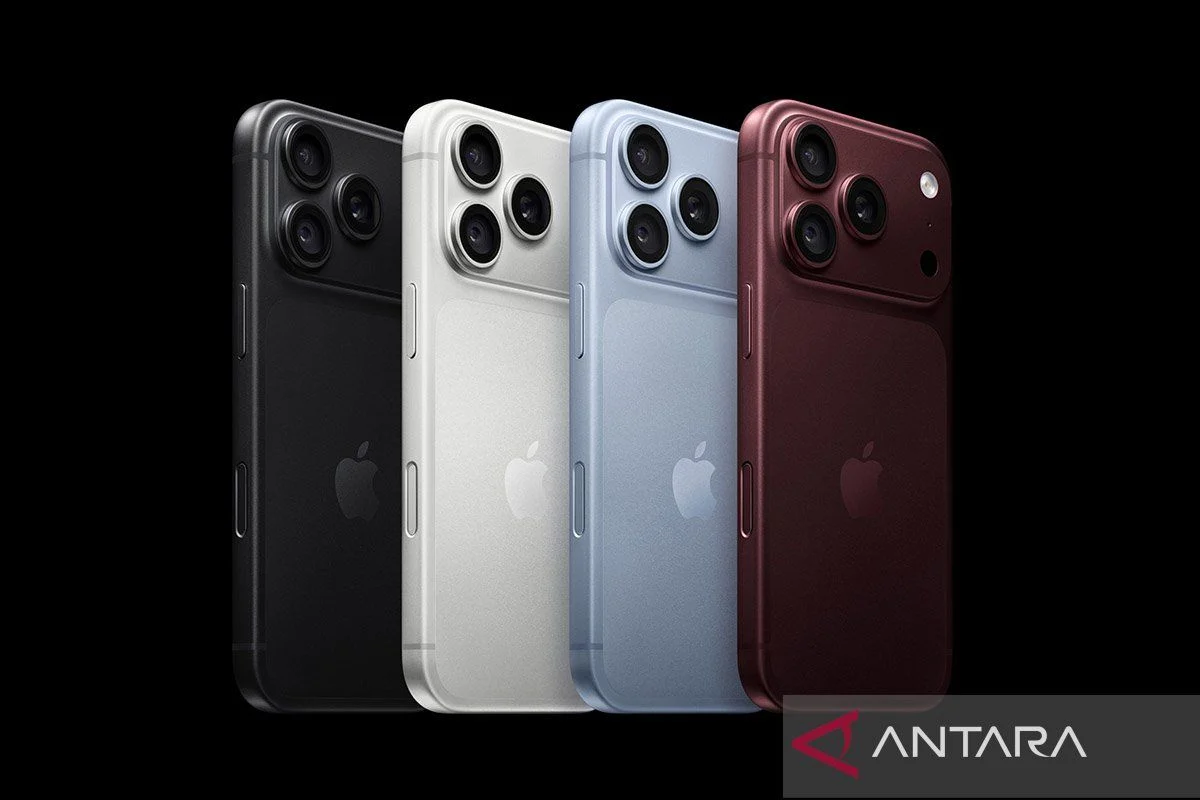
Achieving professional framing requires secure physical placement. Because the rear camera array of the iPhone delivers significantly higher resolution and optical depth than front-facing selfie lenses, the phone must be mounted securely with the rear cameras facing the user. Apple and various third-party accessory manufacturers—such as Belkin—offer specialized MagSafe mounts designed to clip securely onto the upper bezel of a MacBook display.
When mounting the device, users should ensure the iPhone is oriented horizontally in landscape mode. Landscape orientation is critical because standard video conferencing applications natively render video feeds in wide-aspect ratios. Vertical positioning will result in cropped letterboxed imagery or failure of the host application to recognize the input aspect ratio correctly. Furthermore, the mount must be stable to prevent structural vibration or gradual slippage during active typing or gesturing.
3. Application Integration and Input Selection
Once the iPhone is physically secured and powered on near the Mac, users can open any application dependent on camera input. Native programs like FaceTime, as well as third-party enterprise tools such as Zoom, Microsoft Teams, Google Meet, and Webex, immediately recognize the iPhone as an available video and audio peripheral.
Within FaceTime, users navigate to the top menu bar, select Video, and choose the iPhone from the list of available cameras. For third-party conferencing platforms, the adjustment is typically found within the application’s settings or preferences menu under the Video and Audio tabs. Upon selection, the MacBook’s display instantly transitions to the high-definition feed captured by the iPhone’s advanced rear camera system.
4. Power Management: Wireless versus Wired Connectivity
One of the primary benefits of Continuity Camera is its wireless functionality, allowing users to move about their workspace without being tethered to their laptops by physical cords. However, continuous transmission of 1080p or 4K video feeds places a heavy computational and energetic burden on the iPhone’s battery.
To mitigate rapid battery depletion during extended multi-hour board meetings or lectures, users can seamlessly transition from wireless operation to a wired connection by linking the iPhone to the MacBook via a USB-C cable. This wired configuration not only maintains continuous battery replenishment during high-intensity workloads but also acts as a failshoot against local wireless interference or network congestion in office environments crowded with competing Wi-Fi signals.
Advanced Computational Video and Audio Features
Beyond simple resolution upgrades, the integration of Continuity Camera unlocks a suite of software-driven visual enhancements powered by Apple’s machine learning frameworks. These features operate in real time, transforming a standard video call into a broadcast-quality production.
- Center Stage: Utilizing the ultra-wide rear camera sensor, Center Stage automatically pans, zooms, and adjusts the digital frame to keep the user centered, even when moving around or leaning to the side. This is particularly useful for instructional videos, presentations, or dynamic collaborative sessions.
- Portrait Mode: This feature artificially blurs the background behind the user, generating a professional shallow depth-of-field effect that isolates the speaker from distracting home or office environments without requiring a physical green screen.
- Studio Light: An algorithmic enhancement that intelligently brightens the user’s face while dimming harsh background lighting, ensuring optimal facial exposure even in poorly lit rooms.
- Desk View: Perhaps the most innovative utility within the Continuity Camera suite, Desk View utilizes the ultra-wide camera to simultaneously display the user’s face and an overhead-style perspective of their physical desk surface. This capability is exceptionally valuable for educators demonstrating handwritten equations, artists sketching concepts, or product reviewers displaying physical items directly to remote participants.
Troubleshooting and Common Resolution Strategies
Despite the seamless nature of Apple’s ecosystem architecture, technical anomalies can occasionally disrupt the connection between an iPhone and a MacBook. Common failure points usually stem from network dropouts, outdated software binaries, or account synchronization errors.
If an iPhone fails to appear as an available webcam option within macOS, users should execute a systematic diagnostic checklist:
- Verify Wireless Handshakes: Ensure that both Wi-Fi and Bluetooth are actively broadcasting on both the iPhone and the Mac. Toggling both radios off and back on can re-establish local peer-to-peer discovery protocols.
- Confirm Apple Account Consistency: Check the Apple Account settings on both devices to guarantee that they are signed into the exact same profile. Discrepancies in secondary iCloud accounts will sever secure handshaking procedures.
- Physical and Cable Diagnostics: If wireless discovery fails persistently, connect the iPhone directly to the Mac using a certified USB-C cable. This bypasses local RF interference and forces a direct hardware handshake.
- Software Updates: Ensure that both iOS and macOS are updated to their latest respective builds. Mismatched minor version numbers can occasionally deprecate API calls necessary for Continuity features to function. Restarting both devices is also a standard remedial step that clears temporary system caches.
Economic and Industry Implications of Ecosystem Integration
The widespread adoption of features like Continuity Camera signals a broader trend within consumer technology: the convergence of disparate hardware categories into unified modular systems. By empowering consumers to utilize existing mobile investments as high-performance desktop peripherals, Apple reduces electronic waste and dampens the demand for standalone peripheral purchases.
For enterprise organizations, this capability translates into reduced hardware expenditure. IT procurement departments no longer need to allocate capital budgets for dedicated external webcams for every remote employee outfitted with a MacBook and a modern iPhone. Instead, corporate standardization around Apple hardware ecosystems yields immediate cost-saving efficiencies alongside elevated audiovisual standards during client-facing virtual communications.
As artificial intelligence and neural processing chips continue to advance across mobile and desktop silicon, the boundary between dedicated broadcast equipment and everyday consumer electronics will continue to blur. Continuity Camera stands as a prime industrial example of how sophisticated software engineering can unlock latent hardware potential, redefining the utility of personal technology in an increasingly connected world.